We research every product we recommend. We may earn a commission from the links on this page.
Electronics › Docking Stations

One Cable, One Bandwidth Budget: What Your Dock Actually Delivers

We compare published specifications and marketplace data. We do not test these products.

One Cable, One Bandwidth Budget — What a Dock Can Really Drive
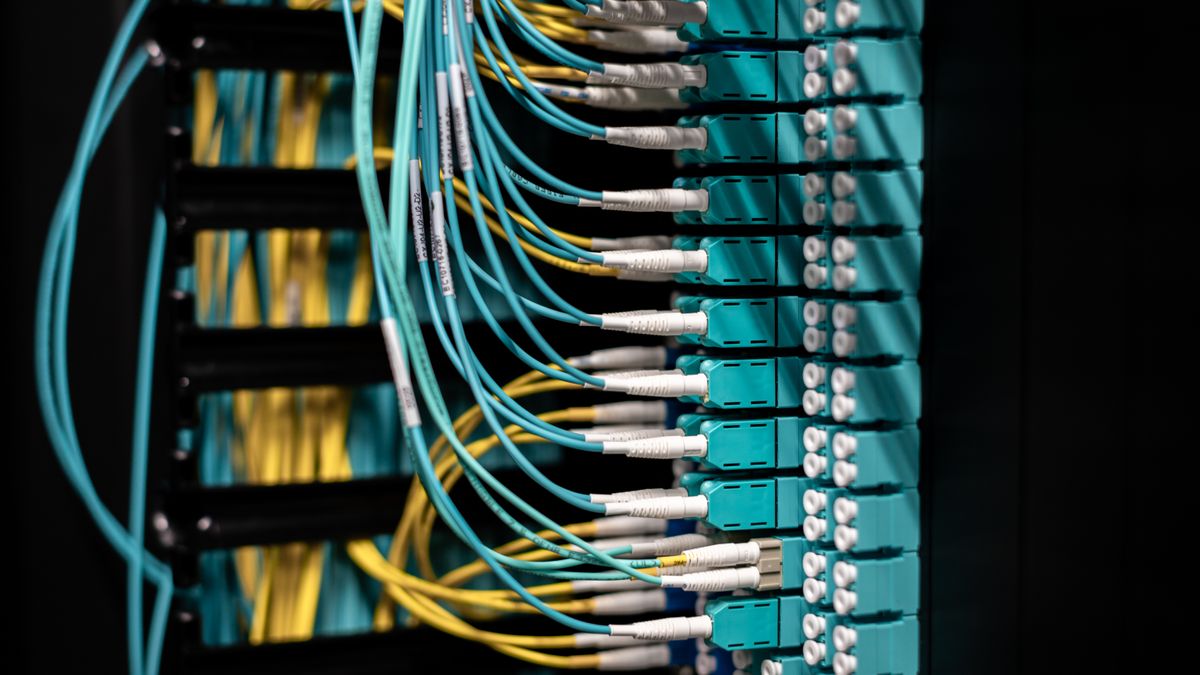
Photo by Brett Sayles on Pexels

A 5Gbps upstream link moves about 625 megabytes per second — total, shared across every port on the dock. Plug in one fast SSD and you’ve used all of it. Plug in two and each gets half. Add a 4K display and the math gets worse. Every docking station funnels its ports through a single upstream cable, and the protocol behind that cable — USB 3.0, Thunderbolt 4, Thunderbolt 5 — sets a hard ceiling on what everything downstream can do at once. Here’s how that budget actually divides.

Affiliate disclosure: This article contains affiliate links. We may earn a commission if you buy through them, at no extra cost to you.

Everything we looked at

4 picks

How we picked

We do not bench-test these docks. Selections rest on published controller specifications, Thunderbolt certification records, and aggregated buyer reports.

Protocol ceiling, not port count

Upstream bandwidth — USB 3.0, Thunderbolt 4, or Thunderbolt 5 — sets the hard limit for all downstream traffic combined.

Display load first

A 4K60 monitor consumes roughly 12.5Gbps. We calculate what remains for storage and peripherals after displays claim their share.

Certified controllers

Thunderbolt certification and Intel or Realtek controller datasheets confirm claimed speeds. Marketing bandwidth numbers alone do not count.

Power delivery capability

Higher wattage charging reduces cable clutter and keeps laptops supplied under load. We prioritize 100W or above for modern ultrabooks.


The pipe, not the ports

Every dock connects to your computer through one cable. That cable runs a specific protocol — USB 3.0 at 5Gbps, USB 3.2 Gen 2 at 10Gbps, Thunderbolt 4 at 40Gbps, Thunderbolt 5 at 120Gbps — and that number is the total bandwidth available to the entire dock. Not per port. Total.

Think of it as a water main feeding a house. You can install twenty faucets, but they all draw from the same pipe. Open one and pressure is fine. Open five and each one slows to a trickle. A dock works the same way: its internal controller multiplexes data across all its ports using packet-switching, dynamically allocating whatever capacity is free. When aggregate demand exceeds the upstream link, every device’s throughput drops proportionally.

This is why a twelve-port dock on a 5Gbps connection can’t deliver 5Gbps to each port at the same time. It never could. The port count tells you how many things you can physically connect. The upstream protocol tells you how much they can actually do.

What 4K actually costs

A single 4K display at 60Hz consumes roughly 12.5Gbps of bandwidth when driven over DisplayPort 1.4 with Display Stream Compression — the standard compression most docks use. Without compression, an uncompressed 4K60 signal demands nearly 26Gbps. Either way, video is the single hungriest device most people connect to a dock.

On a 5Gbps upstream link, you simply don’t have enough bandwidth for uncompressed 4K. A dock at that tier can push 4K60Hz through HDMI because HDMI handles its own compression and timing separately from the USB data stream, but the remaining USB bandwidth for drives and peripherals shrinks to whatever’s left after the display controller takes its share.

On a 40Gbps Thunderbolt 4 connection, one 4K60 display takes roughly a third of the budget. Two 4K displays take roughly two-thirds. That leaves 13-14Gbps for USB ports, Ethernet, and card readers — still generous for most desk setups, but no longer the full 40Gbps your SSD benchmarks assumed.

At 120Gbps on Thunderbolt 5, video bandwidth stops being the bottleneck. Four 6K displays and a fast NVMe drive can coexist without starving each other, because the pipe is finally wider than what a realistic desktop demands.

Who needs what: four different desks

Not everyone has the same problem. A Mac mini sitting on a shelf with a keyboard, mouse, and one monitor has a fundamentally different bandwidth demand than a laptop driving dual 4K screens, a NAS-speed Ethernet connection, and an external SSD for video editing.

The right dock depends on what’s competing for that single cable. If the answer is “a keyboard, a webcam, and one display,” a 5Gbps hub handles it without breaking a sweat. If the answer is “two monitors plus a 10-gigabit network transfer while I’m importing photos from an SD card,” you need a pipe wide enough that none of those tasks choke the others.

The four docks here span the full range — 5Gbps to 120Gbps upstream, $50 to $750 — and the right choice is determined by the worst-case moment on your desk, not the average one.

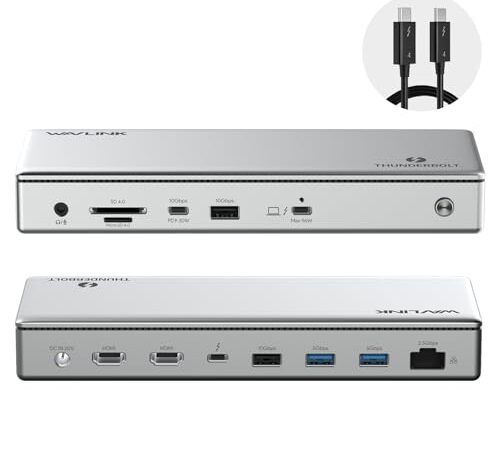
Forty gigabits per second is where a dock stops feeling like a compromise. Two 4K60 displays with DSC consume roughly 25Gbps, leaving 15Gbps for the four USB ports, 2.5G Ethernet, and card reader to share. That’s enough for a fast external SSD to hit its rated speed while you’re on a video call with both screens active.

The 100W power delivery means the upstream Thunderbolt cable charges your laptop while carrying data — no second charger on the desk. Thunderbolt certification matters here because it guarantees the dock meets Intel’s minimum performance requirements for dual 4K and four USB 3.2 ports. A USB-C dock at the same price point might have identical ports but run them on a 10Gbps link, cutting your effective bandwidth by 75%.

The 2.5G Ethernet port is a thoughtful match for the bandwidth tier. At full load it consumes about 2.5 of your remaining 15Gbps — noticeable, but not crippling. A 10GbE port on a 40Gbps dock would be more aggressive, theoretically capable of eating a quarter of the total budget during a sustained transfer. At this tier, 2.5G is the realistic ceiling for network speed that plays well with everything else.

When 10Gbps is enough — and when it runs out

Ten gigabits per second sounds fast until you start dividing. One NVMe SSD over USB 3.2 Gen 2 can move roughly 1000MB/s — that’s 8Gbps of your 10Gbps budget consumed by a single drive. Add a 4K display’s overhead and you’ve oversubscribed the link. The SSD slows down. The display might stutter. Neither device is broken; they’re both getting less than they need.

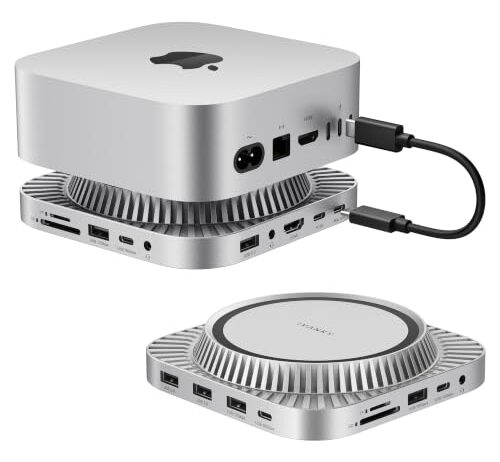
For a Mac mini that already has its own display output, though, 10Gbps through a dock makes more sense than it sounds. The dock isn’t carrying video — the mini’s own HDMI or Thunderbolt port handles the monitor directly. What the dock adds is more USB ports for drives, card readers, and peripherals. Without video consuming a chunk of the budget, 10Gbps goes further: two USB-A ports, two USB-C ports, and SD/TF card slots can share the link without constant contention, as long as you’re not hammering two fast drives simultaneously.

Context determines whether this tier works. Peripherals and card readers — yes. A fast SSD plus a 4K capture card — no.

The 5Gbps floor

Five gigabits per second is 625 megabytes per second. One USB 3.0 SSD running sequential reads can saturate that completely. This is not a bandwidth tier designed for heavy lifting — it’s designed for convenience: a few extra ports, an HDMI output, a card reader, in a form factor that tucks under a Mac mini and costs fifty dollars.

At this tier, you plan around what’s plugged in at the same time. A keyboard and mouse consume almost nothing. An SD card import is fine on its own. Copying files to a USB drive while importing photos from a card will feel slow, because both operations compete for the same 625MB/s ceiling.

The 4K60Hz HDMI output here works because HDMI uses its own dedicated signal path rather than consuming USB data bandwidth. That’s a hardware-level distinction: the dock’s HDMI controller takes the video signal before it reaches the USB multiplexer. Your USB ports still get the full 5Gbps — they just don’t get more than that.

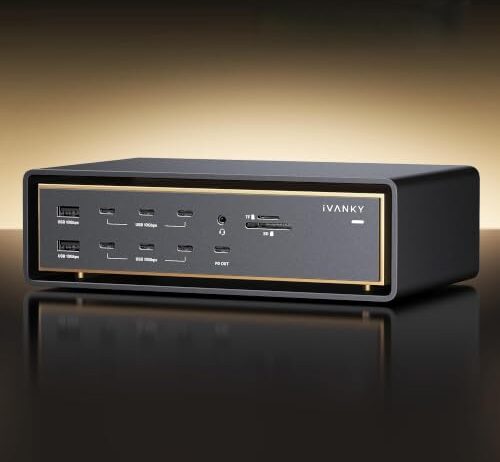
At 120Gbps, the math finally works in your favor. Four 6K displays, a 10-gigabit Ethernet transfer, and a fast NVMe SSD can all run at once and still leave headroom. This is triple the bandwidth of Thunderbolt 4 and twenty-four times what a basic USB 3.0 hub delivers. The constraint that defines every other dock on this list — dividing one pipe among too many hungry devices — becomes a non-issue for all but the most extreme workflows.

The 10GbE Ethernet port is the clearest example of why this tier exists. On a 40Gbps dock, a 10-gigabit network transfer at line rate would consume a quarter of your upstream budget. On a 10Gbps dock, it would take the entire pipe. At 120Gbps, a sustained 10GbE transfer uses about 8% of capacity. You can push large video files to network storage while rendering to an external display and reading from an SD card without any of those tasks degrading the others.

The 140W power delivery is scaled to match. High-bandwidth Thunderbolt controllers draw more power than USB 3.0 hubs, and a laptop running four external displays under load needs aggressive charging to avoid draining its battery while docked. At 140W, the dock can keep a power-hungry workstation charged while feeding 26 downstream ports.

The USB-C connector lie

Every dock in this comparison connects via USB-C. But a USB-C connector tells you nothing about the protocol behind it. A USB-C port on a laptop might run USB 2.0 at 480Mbps, USB 3.2 Gen 1 at 5Gbps, USB 3.2 Gen 2 at 10Gbps, Thunderbolt 4 at 40Gbps, or Thunderbolt 5 at 120Gbps. The plug is identical. The performance is not.

Plug a Thunderbolt 4 dock into a USB 3.2 Gen 1 port and it works — but at 5Gbps, not 40. The dock doesn’t warn you. Your displays might not connect at all, or they might connect at reduced resolution. Your SSD runs at a fraction of its capability. Everything technically functions, but nothing performs.

Before buying a dock, check what protocol your computer’s ports actually support. On a Mac, this is straightforward — Apple publishes which ports are Thunderbolt. On Windows laptops, it’s harder: manufacturers often label ports with USB-C without specifying the underlying protocol. A Thunderbolt icon (a lightning bolt) next to the port is the reliable tell. Without it, assume USB 3.2 and plan accordingly.

Ethernet on a shared pipe

Network speed through a dock is capped twice: once by the Ethernet port’s own rating, and again by whatever upstream bandwidth isn’t already spoken for.

A 2.5G Ethernet port on a 40Gbps Thunderbolt 4 dock is well-matched. Even at full sustained transfer — streaming video proxies to a NAS, pulling a repo, syncing a backup — 2.5Gbps is about 6% of the upstream budget. The other 37.5Gbps are free for displays, drives, and peripherals.

A 10GbE port changes the equation. At line rate, 10Gbps is significant on any dock below Thunderbolt 5. On a 40Gbps link, a saturated 10GbE transfer takes a quarter of total capacity — still workable if your other devices are light, but noticeable if you’re also driving two 4K screens. On a 10Gbps dock, 10GbE would theoretically consume the entire budget, leaving nothing for USB ports.

Most real-world network traffic is bursty, not sustained. You won’t notice contention during web browsing or video calls. You will notice it during large file copies to network-attached storage, which is exactly when you’d want the speed you paid for.

FAQ

How many devices can I plug into a dock before things slow down?

It depends on what each device demands, not how many there are. A keyboard and mouse consume almost zero bandwidth. One fast SSD on a 5Gbps dock consumes nearly all of it. The upstream protocol — 5, 10, 40, or 120Gbps — sets the total pool, and every active device draws from it simultaneously. Count bandwidth demand, not ports.

Why is my external SSD slower through the dock than when plugged directly into my laptop?

Directly connected, your SSD gets the full bandwidth of the port it’s plugged into. Through a dock, it shares the upstream link with every other device — displays, Ethernet, card readers. If you’re running a 4K monitor through the same dock, the display alone may consume a third or more of the available bandwidth, leaving your SSD with proportionally less.

Can a Thunderbolt 4 dock run dual 4K monitors and Ethernet at full speed simultaneously?

Yes, with caveats. Two 4K60 displays with compression use roughly 25Gbps of the 40Gbps budget. A 2.5G Ethernet port adds 2.5Gbps. That’s about 28Gbps committed, leaving 12Gbps for USB ports — enough for normal peripherals, but not enough for a fast SSD to hit its maximum rated speed at the same time.

What’s the difference between a Thunderbolt dock and a USB-C dock?

The connector is the same. The bandwidth behind it is not. A USB-C dock typically runs at 5 or 10Gbps. A Thunderbolt 4 dock runs at 40Gbps through an identical-looking USB-C cable. Thunderbolt docks also support features like daisy-chaining, PCIe tunneling, and guaranteed multi-display output that USB-C docks cannot provide regardless of port count.

Does a dock with 10-gigabit Ethernet actually deliver 10Gbps network speed?

Only if the upstream link has 10Gbps to spare after everything else takes its share. On a Thunderbolt 5 dock with 120Gbps upstream, 10GbE runs at full speed without meaningful contention. On a 40Gbps dock, a sustained 10GbE transfer consumes 25% of the total budget, which may degrade other connected devices during large file copies.