
We research every product we recommend. We may earn a commission from the links on this page.
Electronics › Monitors

Digital Signage Brightness and Resolution: Why Your Outdoor Display Looks Washed Out

We compare published specifications and marketplace data. We do not test these products.

Pixels Don't Align When You Scale a Non-Native Resolution
Photo by Pixabay on Pexels

A 2,000-nit display and a 500-nit display look identical indoors. Move them both outside on a July afternoon and one becomes a mirror reflecting the parking lot while the other stays readable from across the street. The difference isn’t just brightness — it’s how resolution scaling, panel technology, and ambient light interact to either preserve or destroy the content you spent hours designing. Here’s what determines whether your signage works where you need it.

Affiliate disclosure: This article contains affiliate links. We may earn a commission if you buy through them, at no extra cost to you.

Everything we recommend
4 picks

How we picked

We do not install these displays outdoors. Judgments rest on published nit ratings, pixel pitch specifications, and verified buyer reports.

Nit rating, not panel size

Direct sunlight requires 2,000 nits minimum. Indoor-rated displays at 500 nits become mirrors in ambient light above 10,000 lux.

Native resolution, not upscaling

Non-native input creates visible artifacts on text. Pixel-for-pixel matching preserves clarity at all viewing distances.

Pixel pitch at viewing distance

LED walls are measured in millimeters between diodes. P1.86 pitch stays sharp at six feet; P3 pitch needs twelve.

Total deployment cost, not list price

Portable units carry batteries and cases. Fixed installations require mounts, enclosures, and power runs that double the sticker cost.

What Nits Actually Measure and Why Indoor Numbers Lie Outdoors

Nits measure candelas per square meter — the amount of light a screen pushes toward your eyes from each unit of surface area. A typical indoor LCD panel runs between 300 and 500 nits. That’s plenty when the room lighting is controlled fluorescent or LED, where ambient light rarely exceeds 500 lux.

Direct sunlight changes the math completely. Outdoor ambient light can hit 100,000 lux, and even shaded outdoor areas regularly exceed 10,000. At those levels, a 400-nit panel loses all contrast — the backlight can’t push enough photons to overcome the ambient light flooding the glass surface. The image doesn’t disappear; it becomes a faint suggestion behind a layer of reflected sky.

A 2,000-nit panel addresses this with raw output. Four to six times the brightness of an indoor LCD means the display maintains readable contrast ratios even in direct afternoon sun. But brightness alone creates a heat problem — pushing that much light through an LCD backlight generates significant thermal load, which is why outdoor-rated units pair high brightness with active cooling systems and auto-brightness sensors that modulate output based on ambient conditions rather than running at maximum constantly.

The auto-brightness part matters more than it sounds. A panel locked at 2,000 nits at midnight wastes power and shortens backlight life. A panel that drops to 600 nits after sunset and climbs back to 2,000 when the sun hits it directly is doing the same job with less wear.

LCD Panels vs. LED Arrays: Two Different Ways to Make a Pixel

LCD signage and LED video walls both display images, but they build those images through fundamentally different mechanisms.

An LCD panel has a backlight — typically an array of LEDs behind or along the edge of the panel — that stays on constantly. In front of that backlight sits a grid of liquid crystal cells. Each cell rotates under electrical charge to either block or transmit light from the backlight. The crystals themselves produce no light; they’re valves controlling how much backlight reaches your eye through color filters.

An LED video wall skips the backlight entirely. Each pixel cluster is a group of individual light-emitting diodes — red, green, and blue — that produce their own light directly. There’s no transmission layer to lose photons through. This is why LED walls can achieve extreme brightness without the thermal ceiling that limits LCD backlights: the heat is distributed across thousands of individual point sources rather than concentrated in a backlight array behind a panel.

The practical consequence is viewing angle. LCD crystals shift their transmission characteristics as you move off-axis, which is why colors wash out when you look at an LCD from a steep angle. LED diodes emit in a cone pattern that’s more consistent across angles, making LED walls readable from wider positions — relevant when your signage faces a sidewalk where pedestrians approach from every direction, not a corridor where everyone looks straight on.

Pixel Pitch and Why LED Resolution Isn’t Measured the Same Way

LCD panels have a fixed pixel grid. A 1920×1080 panel has exactly 2,073,600 pixels arranged in a rectangle, and that number is baked into the glass. A 3840×2160 panel has four times as many. Simple.

LED video walls don’t work that way. A P1.86 LED display has diode clusters spaced 1.86 millimeters apart, center to center. The total resolution depends on how many of those clusters fit in the physical dimensions of the display. A 90-inch P1.86 panel has a different total pixel count than a 120-inch P1.86 panel, even though the pixel density is identical.

To calculate the native resolution of a pixel-pitch display, you divide the physical width and height in millimeters by the pitch value. A display that’s 1,600mm wide at P1.86 pitch has roughly 860 horizontal pixels. That’s closer to 720p than 1080p — which surprises buyers who assume a 90-inch screen must be higher resolution than a 49-inch one.

It isn’t. The 90-inch LED display has larger, more widely spaced pixels. You’re meant to view it from farther away. The rule of thumb is pixel pitch in millimeters times roughly 1,000 gives you the minimum comfortable viewing distance in millimeters — so P1.86 means about 1.86 meters, or roughly six feet. Stand closer and you see individual diodes. Stand at the intended distance and the image resolves cleanly.

The core problem with deploying signage outside a storefront or at a sidewalk event is that indoor panels weren’t built for it. IP65 means dust-tight and protected against water jets from any direction — rain, a pressure washer hitting the sidewalk nearby, a spilled drink. That’s the minimum standard for electronics living outdoors, and it’s the threshold below which moisture eventually reaches the electronics and causes intermittent failures that are maddening to diagnose.

The 2,000-nit brightness puts this in the outdoor-readable range where content maintains contrast against direct afternoon sun. Auto-brightness modulation means the panel adjusts its output to ambient conditions rather than running at full power constantly, which matters for both power consumption and panel longevity — a backlight running at maximum 12 hours a day degrades faster than one that spends half that time at 600 nits after sunset.

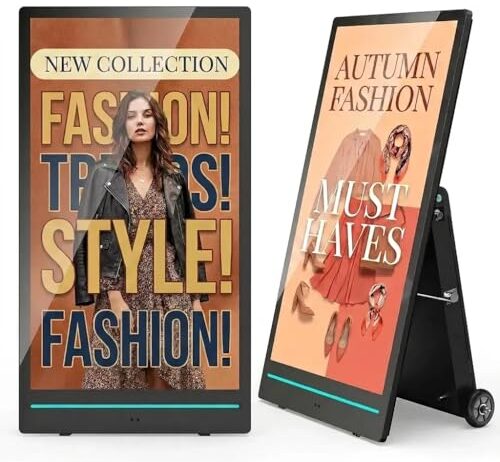
The rechargeable battery and A-frame form factor make this a deploy-and-retrieve unit rather than a permanent installation. That fits a specific use case: restaurants with sidewalk specials, retail stores running weekend promotions, event vendors who set up at a farmers market and break down four hours later. You’re not drilling into a wall or running conduit. You’re carrying it out the front door.

The impact-resistant screen adds durability for that portable life. A display that travels gets bumped against door frames, set down on concrete, and occasionally knocked by a passing cart. Standard LCD glass cracks; impact-resistant glazing absorbs the hit.

Why Non-Native Resolution Makes Text Blurry — and Why It’s Worse on Signage

When your content resolution doesn’t match the panel’s native pixel grid, the display’s scaler chip has to interpolate. If you send a 1080p signal to a 4K panel, each source pixel needs to fill a 2×2 block of physical pixels. That’s clean integer scaling — it works. But send 1080p to a panel with a non-integer multiple native resolution and the scaler starts averaging adjacent pixel values to fill partial-pixel gaps.

On text, this averaging turns sharp edges into fuzzy ones. A vertical stroke in a letter that should occupy one pixel column now bleeds across two, each at partial brightness. Your eye reads this as blur. On a desktop monitor at arm’s length, it’s annoying. On a signage display read from ten feet away, it can make body text genuinely unreadable — the blur spreads across the same angular space as the letter stroke itself.

The fix is simple in principle: output your content at exactly the panel’s native resolution. A 1920×1080 panel gets 1080p content. A 3840×2160 panel gets 4K content. An LED wall at P1.86 pitch gets content rendered at whatever resolution the physical dimensions work out to, which you calculate from the pitch and the panel size.

The complication is the media player. Many signage displays run Android-based internal players that accept content via USB or WiFi. If the player’s output pipeline forces a resolution — say, it upscales everything to 4K internally regardless of panel resolution — you get an interpolation pass you didn’t ask for. Connecting a laptop directly via HDMI and setting the output resolution manually bypasses this, but it also bypasses the automated scheduling and content management the internal player provides.

Touch Accuracy at Larger Screen Sizes

Capacitive touchscreens work by sensing disruptions in an electrostatic field spread across a conductive layer on the glass. A controller chip scans this grid at 60 to 120 times per second, triangulating where your finger is pressing. On a 10-inch tablet, the scanning grid is dense relative to the surface area and the signal paths are short. Touch registration is fast and accurate.

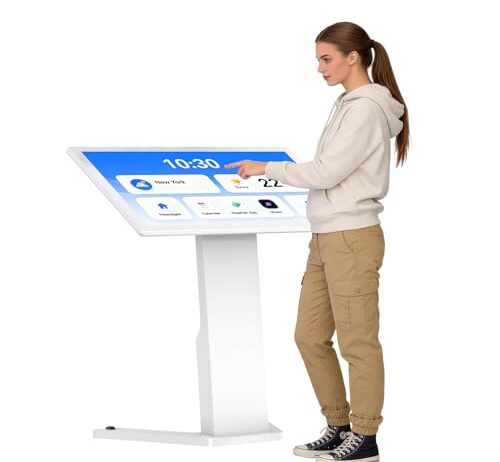
Scale that same technology to 43 or 49 inches and two things change. The scanning grid covers a much larger area with proportionally fewer nodes per square inch, and the electrical signal paths from corner sensors to the controller are physically longer. Longer paths mean more signal attenuation and more noise susceptibility. The practical result is that touch coordinates near the edges and corners of large-format touchscreens can drift — you tap one spot and the system registers the touch a quarter inch away.

For a self-ordering kiosk where buttons are large and spaced apart, this is irrelevant. For a wayfinding application where users tap small map markers or navigate detailed directory listings, it determines whether the interface feels responsive or broken.

Running the display at non-native resolution compounds the problem. If the touch controller maps coordinates to the physical pixel grid but the content is being scaled by the display processor, the coordinate mapping can shift — a touch that should hit a button rendered at one position lands on the button’s scaled position instead, which may not align. Native resolution eliminates this particular failure mode entirely.

The 4K native resolution at 49 inches means roughly 90 pixels per inch. At the two-to-three-foot distance where someone stands to use a touchscreen kiosk, that density keeps text sharp enough that you can run smaller font sizes and fit more information on screen without legibility suffering. A 1080p panel at 49 inches drops to about 45 pixels per inch — still functional for headlines and large buttons, but body text starts looking soft.

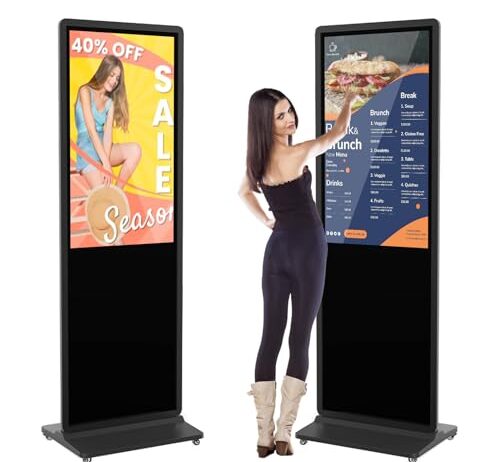
The Android system with auto media player handles the scheduling side: load content to USB, set a playlist, and the display cycles through it without a connected computer. For a retail store running promotional loops interspersed with interactive wayfinding, this is the workflow that doesn’t require someone with IT access to be on-site. The trade-off is control — you’re running content through Android’s display pipeline, which may apply its own scaling. Verifying that your content outputs at 3840×2160 natively through the player, rather than being upscaled from a lower internal resolution, is worth checking before you commit to the content format.

At $1,649, this sits $50 above the 43-inch FHD unit with four times the pixel count. That pricing gap is narrow enough that the resolution upgrade is essentially free — you’re paying for the larger panel and getting the higher resolution as a bonus of the panel generation rather than a premium feature.

Portable LED vs. Fixed LCD: Different Problems, Different Budgets

A 90-inch tri-fold LED display with a flight case and a 43-inch floor-standing LCD kiosk solve different problems at price points that reflect it.

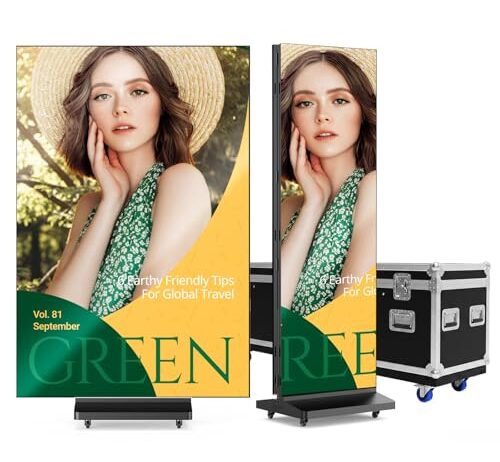
The LED unit folds into thirds for transport — a format designed for trade shows, rental inventory, and event production where the display travels to the venue, runs for a day or a weekend, and goes back in the case. Dual-sided display means both faces show content simultaneously, which doubles the audience in a convention hall aisle or a storefront window where foot traffic passes in both directions. The GOB coating — a transparent epoxy layer over the LED array — protects individual diodes from the physical impacts that come with regular setup and teardown. Each fold, each load-in, each bump against a dolly is a potential point of damage, and uncoated LEDs are fragile at the individual diode level.

At $5,599, you’re paying for the LED technology, the large format, the portability engineering, and the dual-sided capability. That’s 3.4 times the cost of the indoor kiosks, but it’s also a fundamentally different tool — comparing it to a floor kiosk on price alone is like comparing a projector rental to a wall-mounted TV.

The floor kiosks at $1,599 and $1,649 are install-once fixtures. They ship, they get placed, they stay. No flight case, no folding mechanism, no transport protection beyond the shipping box. Their value is in the touch interaction and the permanent presence, not in mobility.

Matching Content to Your Panel Before You Order

The most expensive mistake in signage isn’t buying the wrong display. It’s buying the right display and feeding it wrong-resolution content for six months before someone notices the text is fuzzy.

For LCD kiosks, the process is straightforward. Check the native resolution — 1920×1080 or 3840×2160 — and render all content at exactly that resolution. Every design template, every video export, every static image. No exceptions. If your content management system exports at a fixed resolution that doesn’t match, you have a problem worth solving before the display ships.

For LED displays with pixel pitch ratings, you need one extra step. Measure or look up the active display area in millimeters, divide width and height by the pixel pitch, and that’s your native resolution. Design to those exact dimensions. Rounding to the nearest standard resolution — “it’s close to 720p, so I’ll just use 720p” — introduces exactly the interpolation blur the native calculation was meant to prevent.

For touchscreen applications, test the full interface at native resolution on the actual panel before deployment. Touch calibration on large-format screens can vary unit to unit, and an interface that works perfectly on your desktop mockup may have dead zones or drift areas at the edges of a specific 49-inch panel. A 30-minute calibration check on-site saves a month of user complaints.

FAQ

What resolution should I make my digital signage content?

Match the panel’s exact native resolution. For LCD displays, that’s printed directly — 1920×1080 or 3840×2160. For LED walls with pixel pitch ratings, divide the physical display dimensions in millimeters by the pitch value to calculate native resolution. Any mismatch forces the scaler to interpolate, which blurs text and fine detail.

How bright does a digital sign need to be for outdoor use?

Outdoor-readable displays need 1,500 to 3,000 nits to maintain contrast in direct sunlight. Standard indoor LCDs run 300 to 500 nits, which loses all contrast outdoors. A 2,000-nit panel with auto-brightness is the practical sweet spot — bright enough for midday sun, smart enough to dim at night.

Can I use an indoor digital sign in a storefront window?

South- or west-facing windows get enough direct sun to wash out a 300-500 nit indoor panel for several hours daily. The glass also traps heat, potentially overheating the display. If the window gets direct sun, you need an outdoor-rated or high-brightness panel, even though the display itself is technically indoors.

What does pixel pitch mean on an LED display?

Pixel pitch is the distance in millimeters between the centers of adjacent LED clusters. P1.86 means 1.86mm spacing. Smaller pitch means higher density and closer viewing distances. The comfortable minimum viewing distance in millimeters is roughly the pitch value multiplied by 1,000 — so P1.86 works from about 6 feet away.

Does a touchscreen kiosk work worse at larger screen sizes?

Capacitive touch accuracy can decrease at larger sizes because signal paths from edge sensors to the controller are longer, introducing more noise. This shows up as coordinate drift near corners and edges. For kiosks with large buttons it’s negligible; for detailed interactive maps or small UI elements, test the actual unit before committing to the interface design.